 UVeye HLE
Turning any phone into a reliable vehicle inspection.
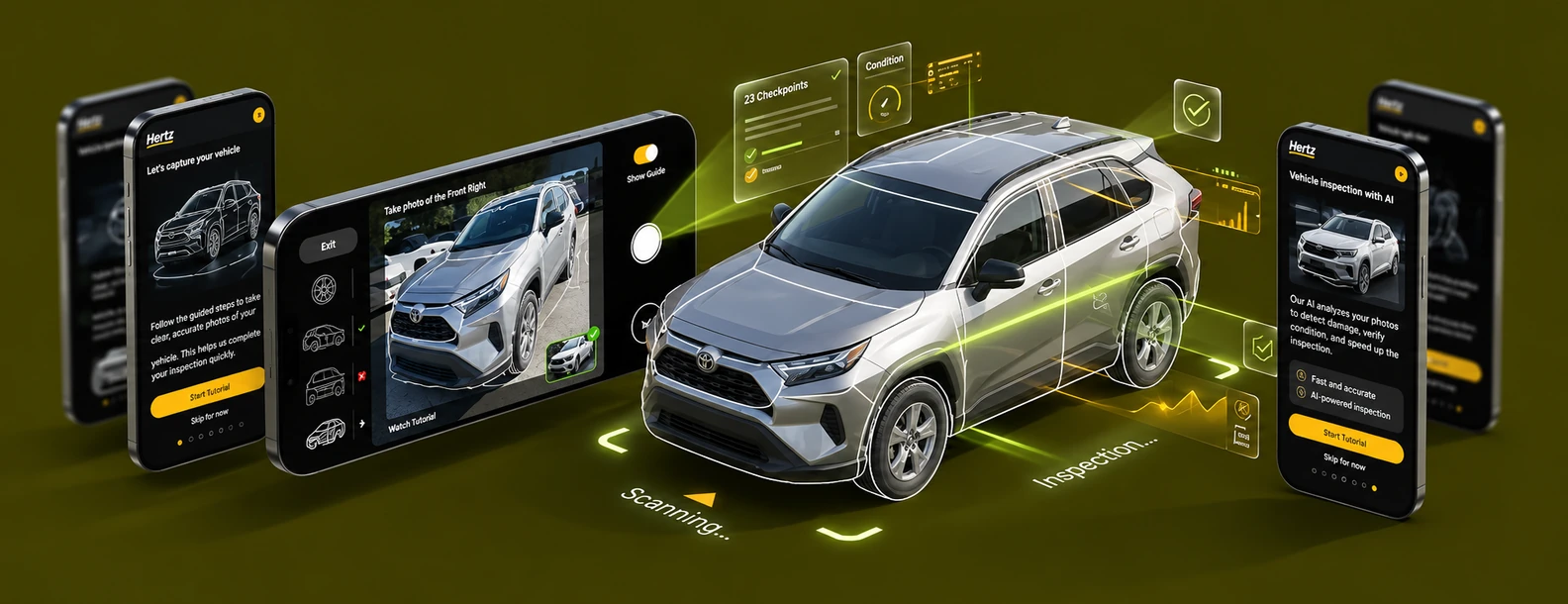
UVeye's AI finds damage on vehicles, but its fixed scanners can't be at every branch. HLE brings the same inspection to a phone: an agent takes 20 guided photos, and the AI does the rest. I owned the design end to end, from the first tutorial screen to the finished inspection.
The problem
Fixed scanners can't be everywhere. The inspection had to fit in a phone.
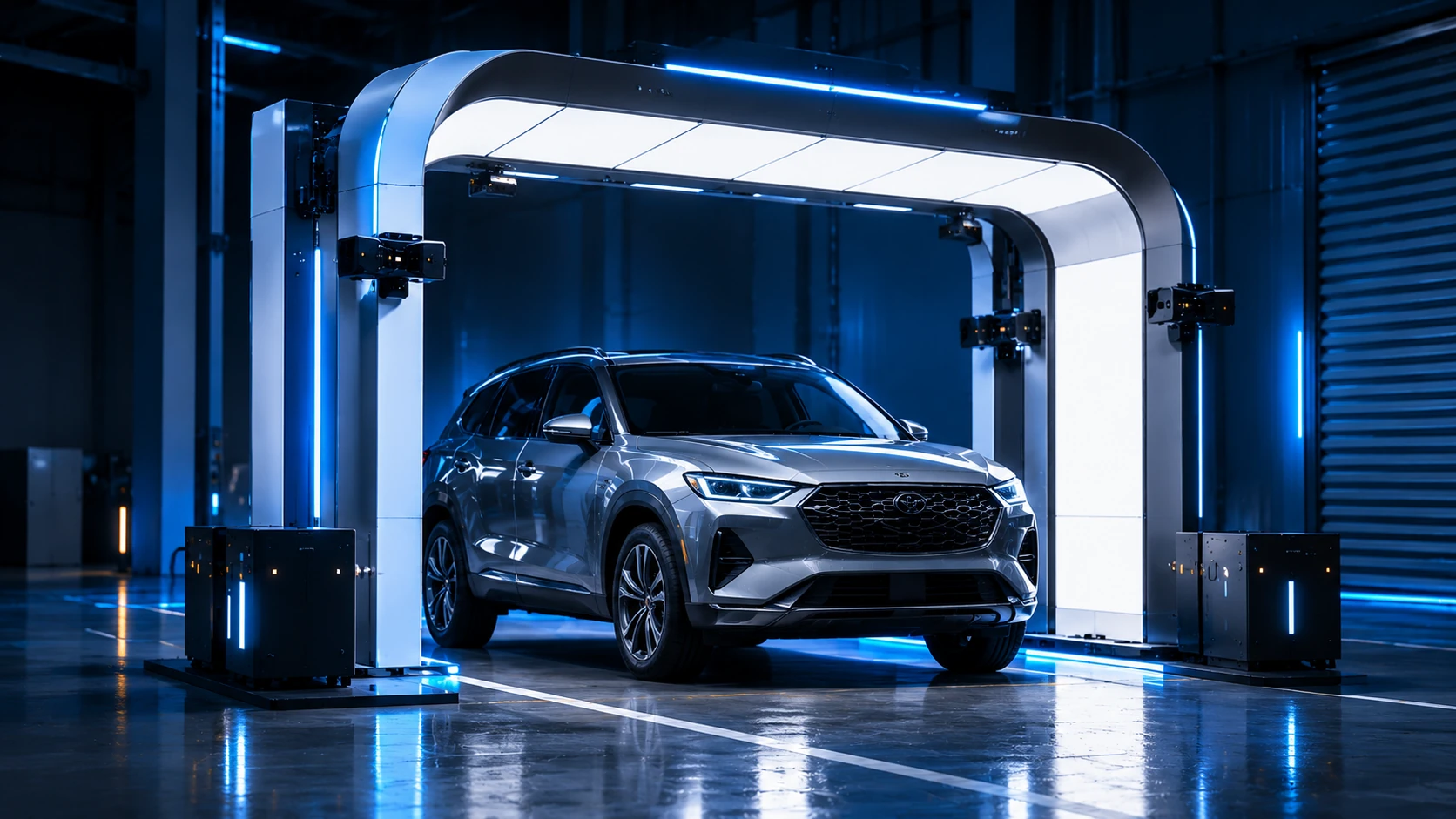
UVeye's fixed scanning systems inspect vehicles where they're installed, but not every rental branch has one. A mobile app could bring the same AI inspection to any branch.
But on a phone, everything depends on the photos. In the earlier capture process their quality was inconsistent: blurry, dark, or taken from the wrong angle.
Research & insight
Agents didn't lack skill. They lacked clear, consistent guidance.
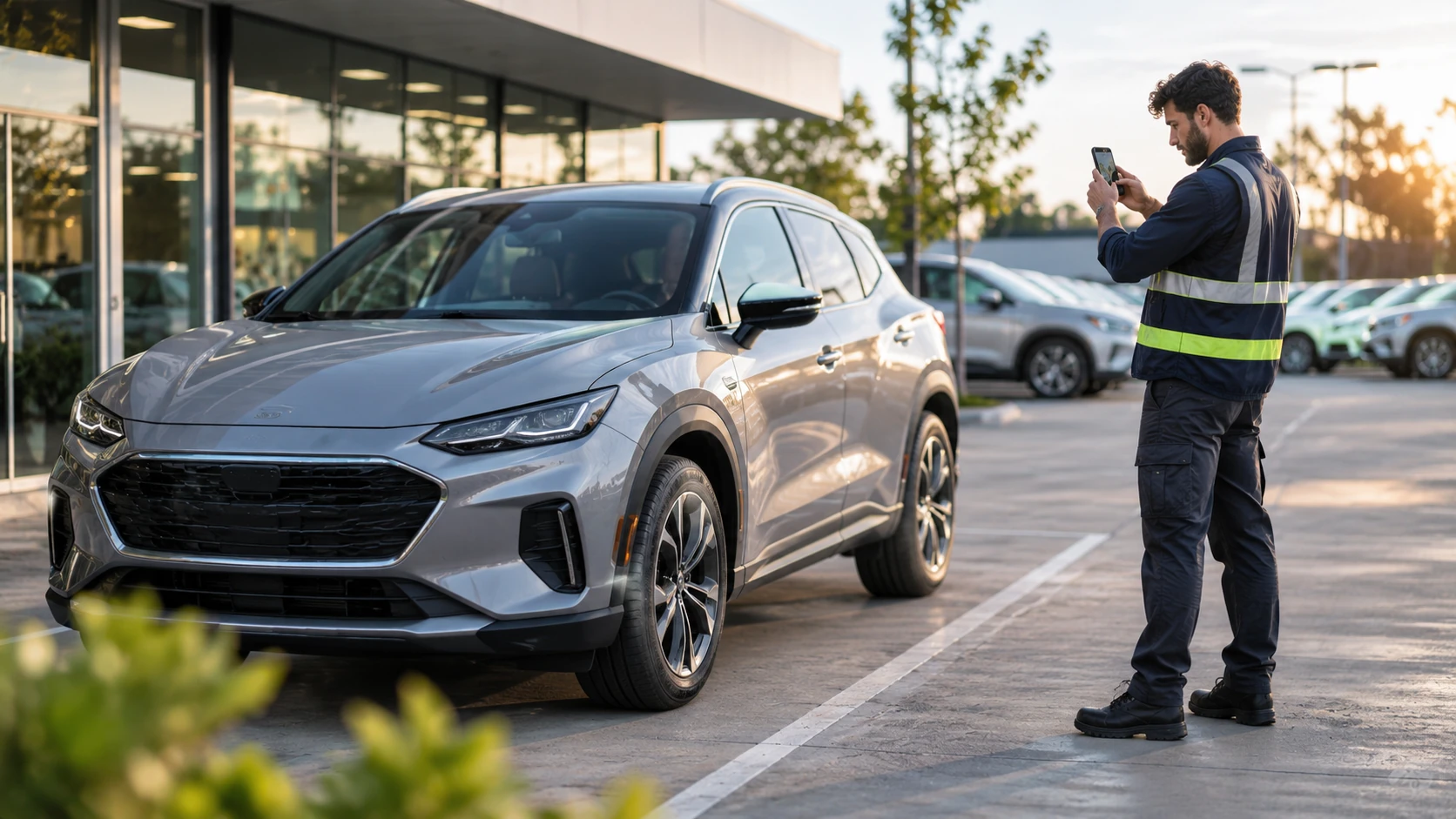
I watched agents photograph cars on site, talked with them about the process, and gathered insights from the product and field teams. The gap wasn't photography. At every shot, the agent was left to answer a question alone.
- 01Which part now?Twenty shots in a set order. Remembering it shouldn't be the agent's job.
- 02How should it look?Without an example, “front right” means something different to every person.
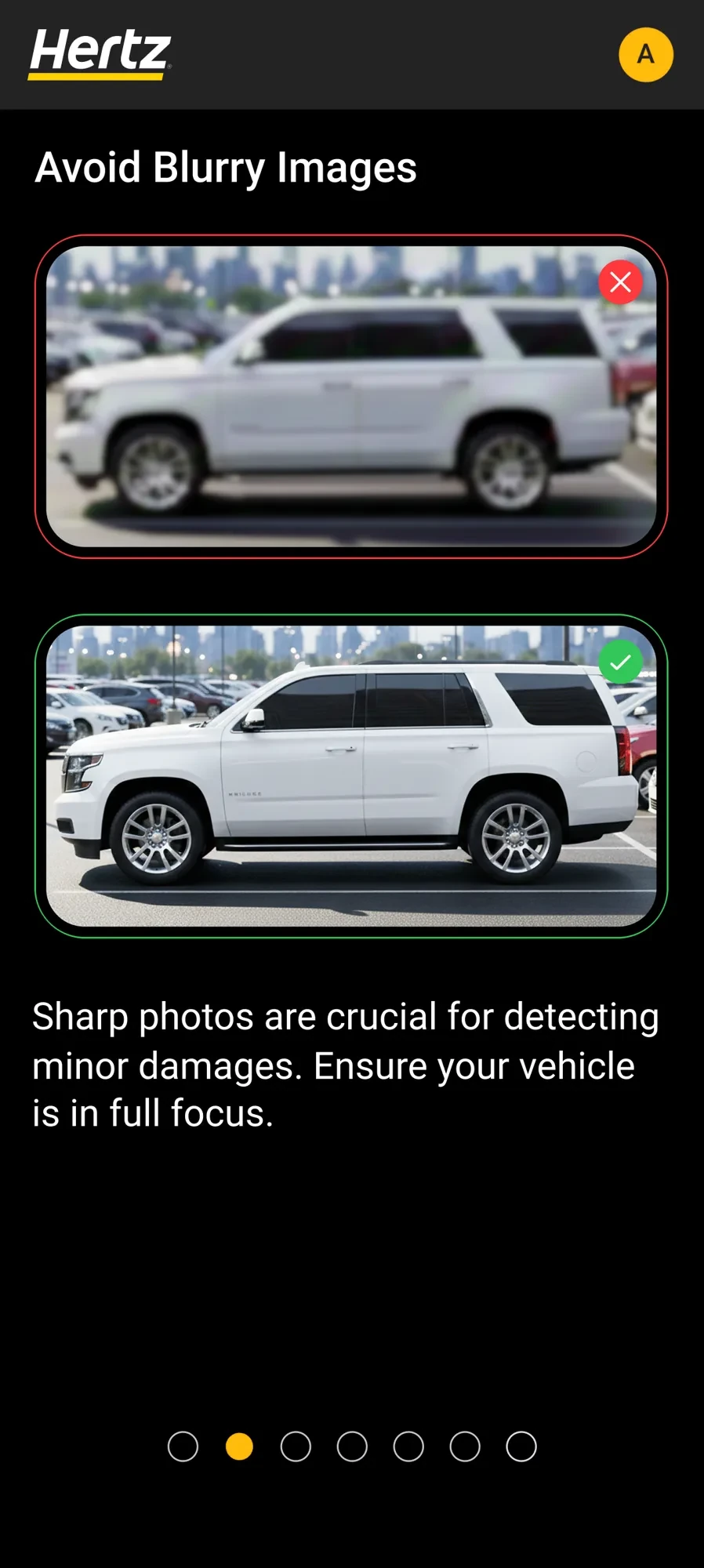
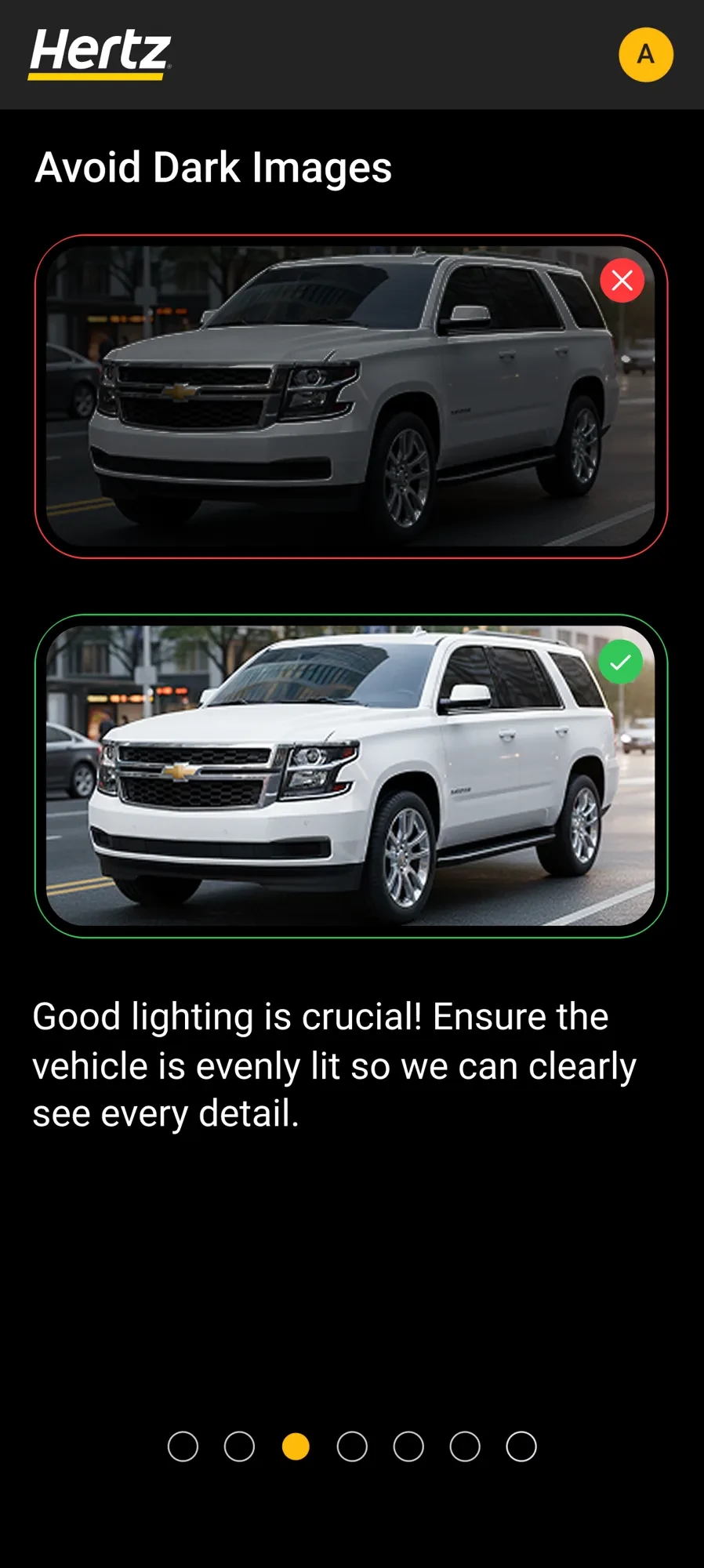
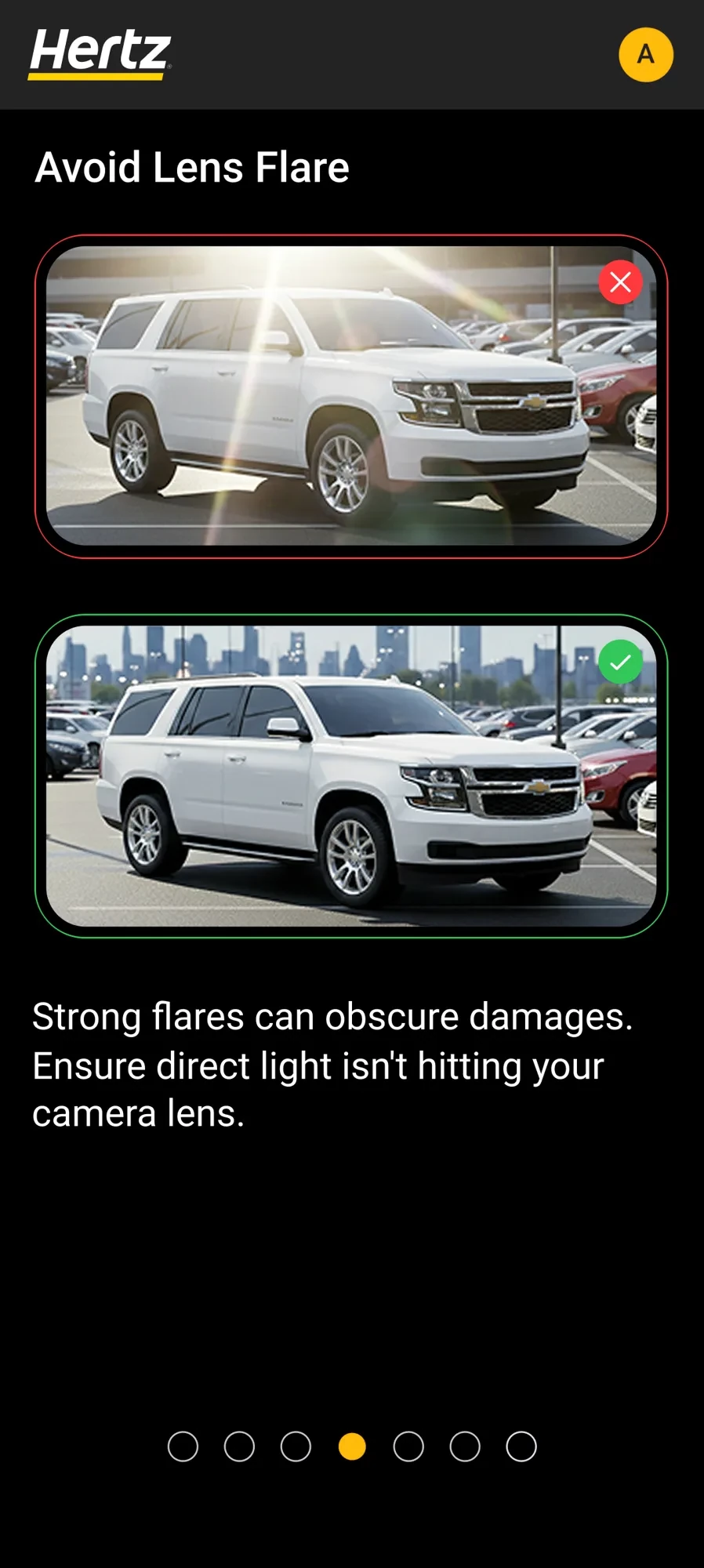
- 03Is this one good enough?Blur, glare and darkness are hard to judge on a small screen.
- 04What if it's wrong?A rejected photo with no reason is retaken the same way.
Collaboration
With Product, Algorithms and Engineering, the AI's limits became UX decisions.
- 01The AI checks every photoSo feedback arrives right after each shot, while the agent is still standing at the car and can fix it.
- 02The AI can't confirm every photoSo after three rejected tries, the agent can continue with the last photo. An inspection never gets stuck.
The journey
One path around the car, from the first tutorial to a finished inspection.
Each step answers a question before the agent has to ask it.
- OnboardingWhat does a good photo look like?
- PrepareIs the car ready to shoot?
- Capture20 guided photos, one at a time
- RecoverFix a rejected photo on the spot
- CompleteThe inspection is done
01 · Onboarding
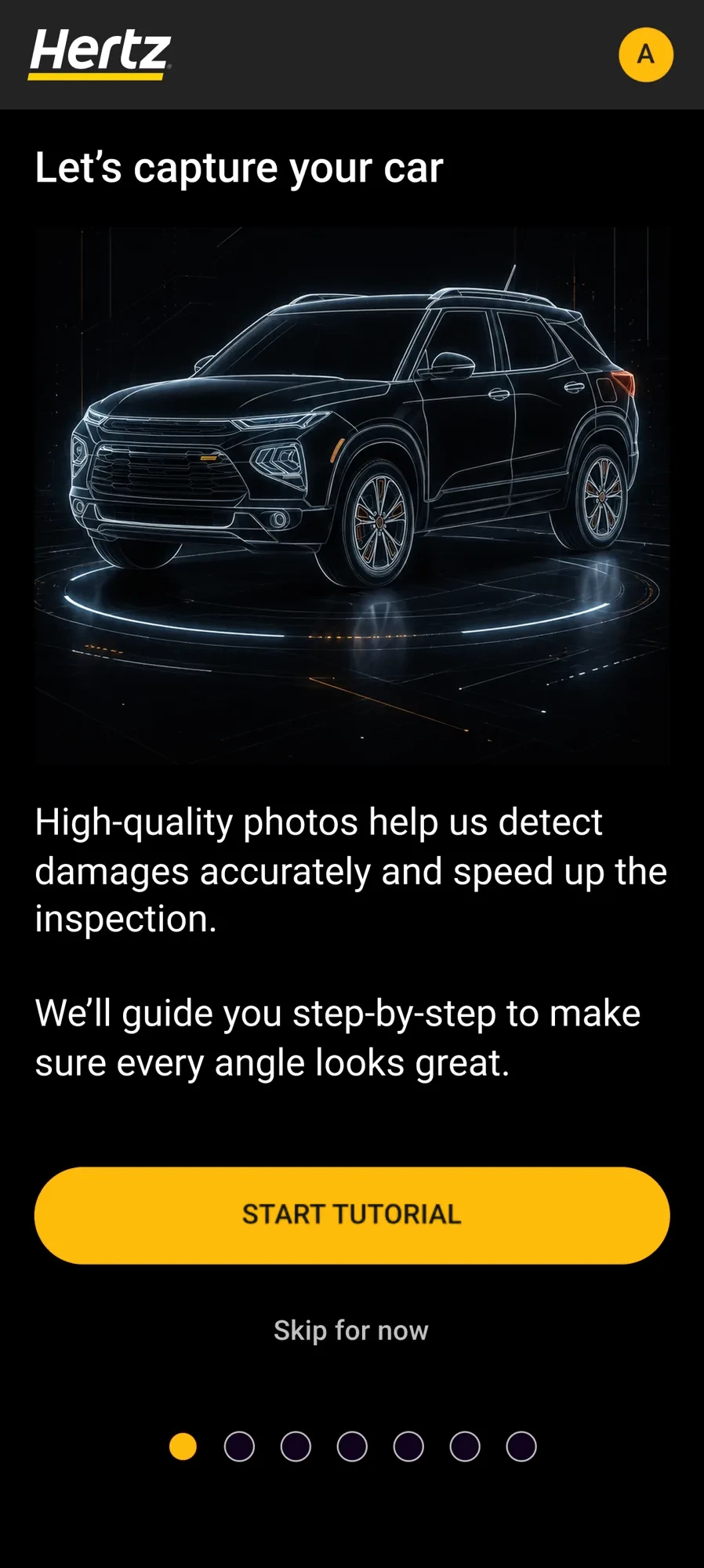
Learning by seeing, not by reading
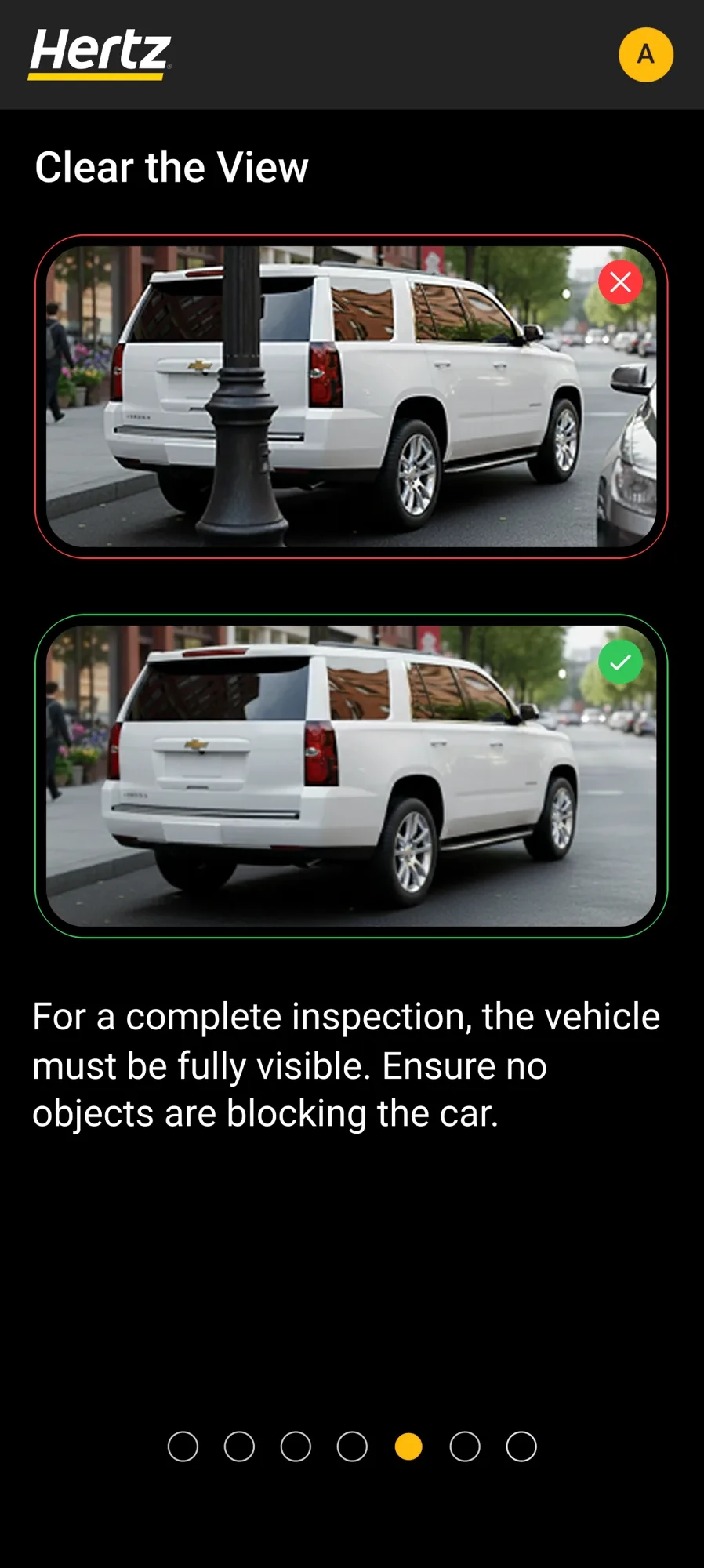
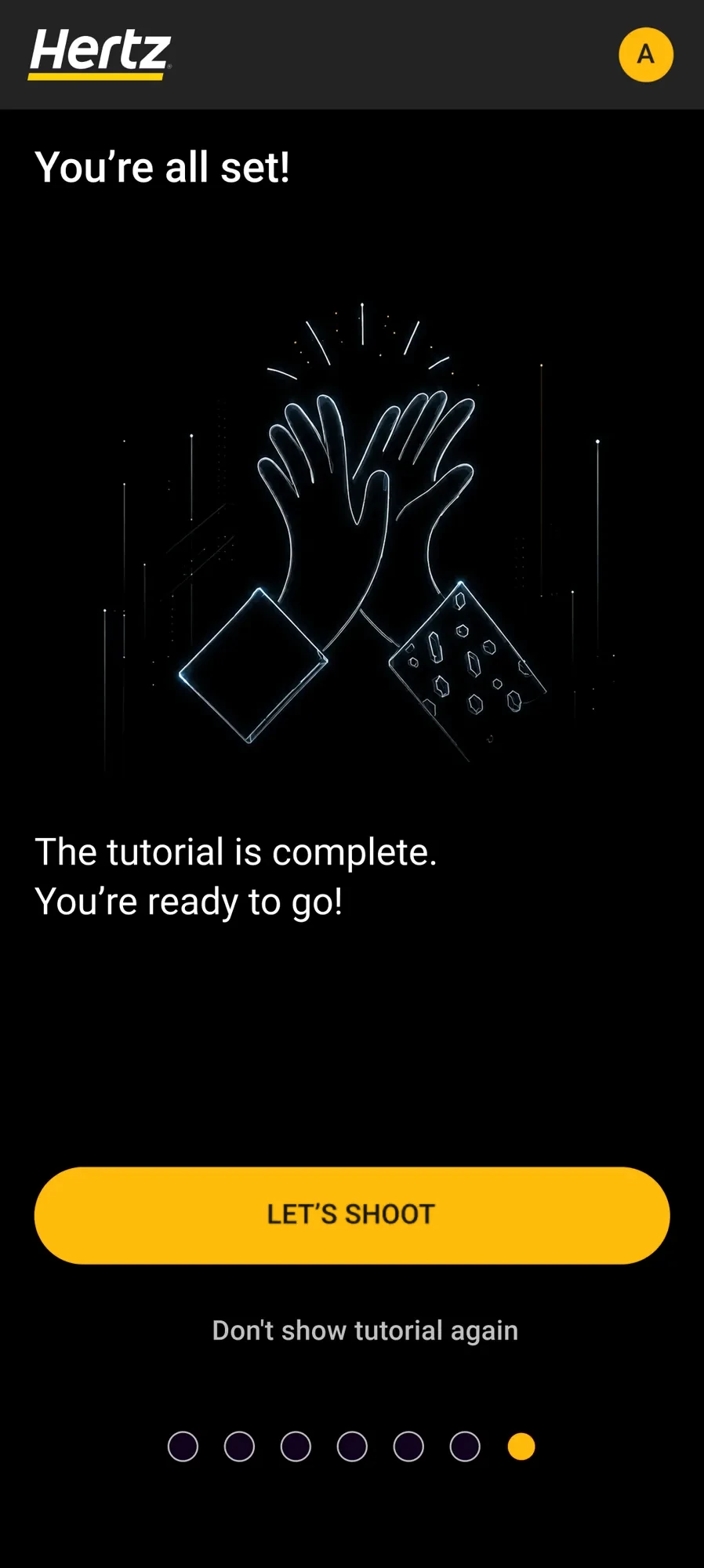
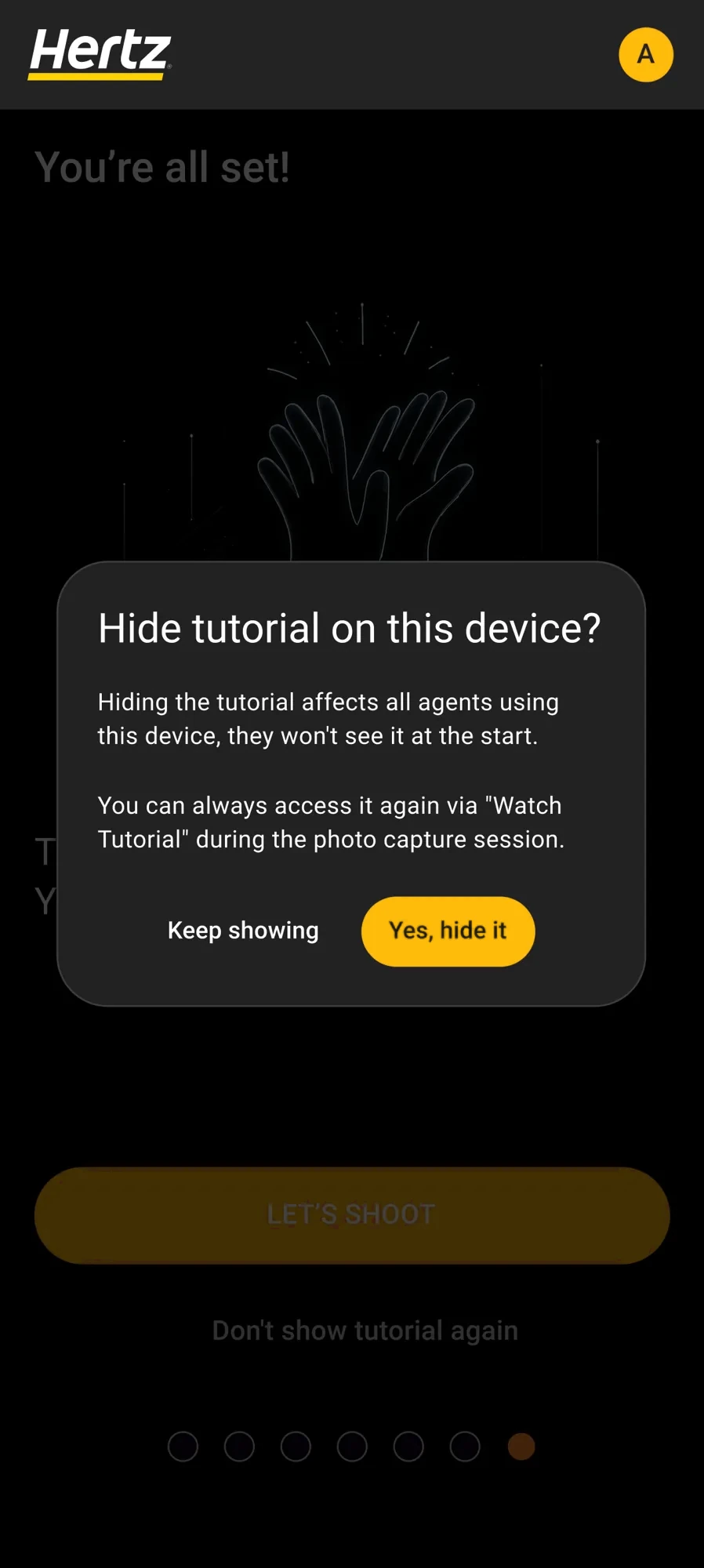
A short visual tutorial before the first shot, one rule per screen. It can be skipped, and once it's complete, it can be hidden. Two exits that look alike but mean very different things on a shared phone.
Skip for now
Don't show tutorial again
02 · Capture
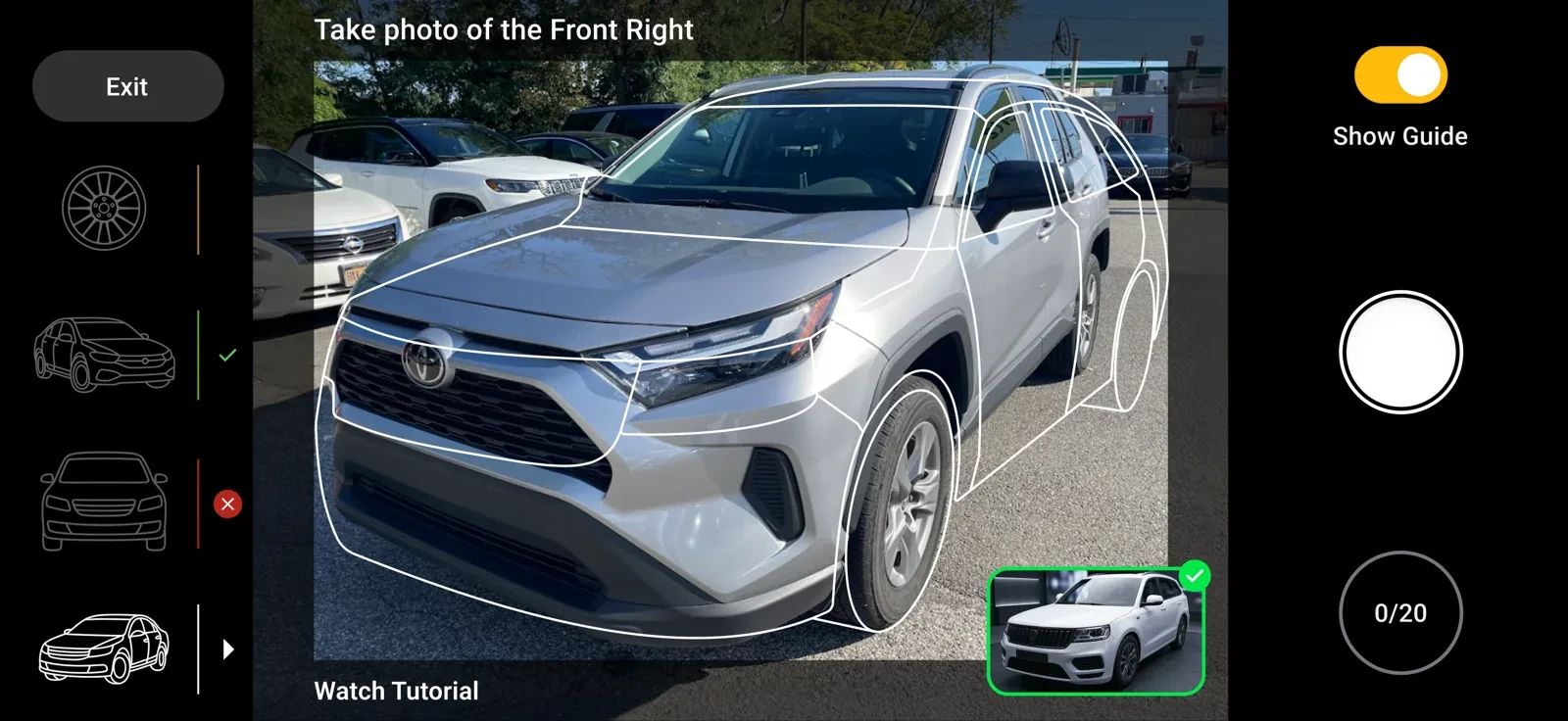
Five layers of guidance on one camera screen
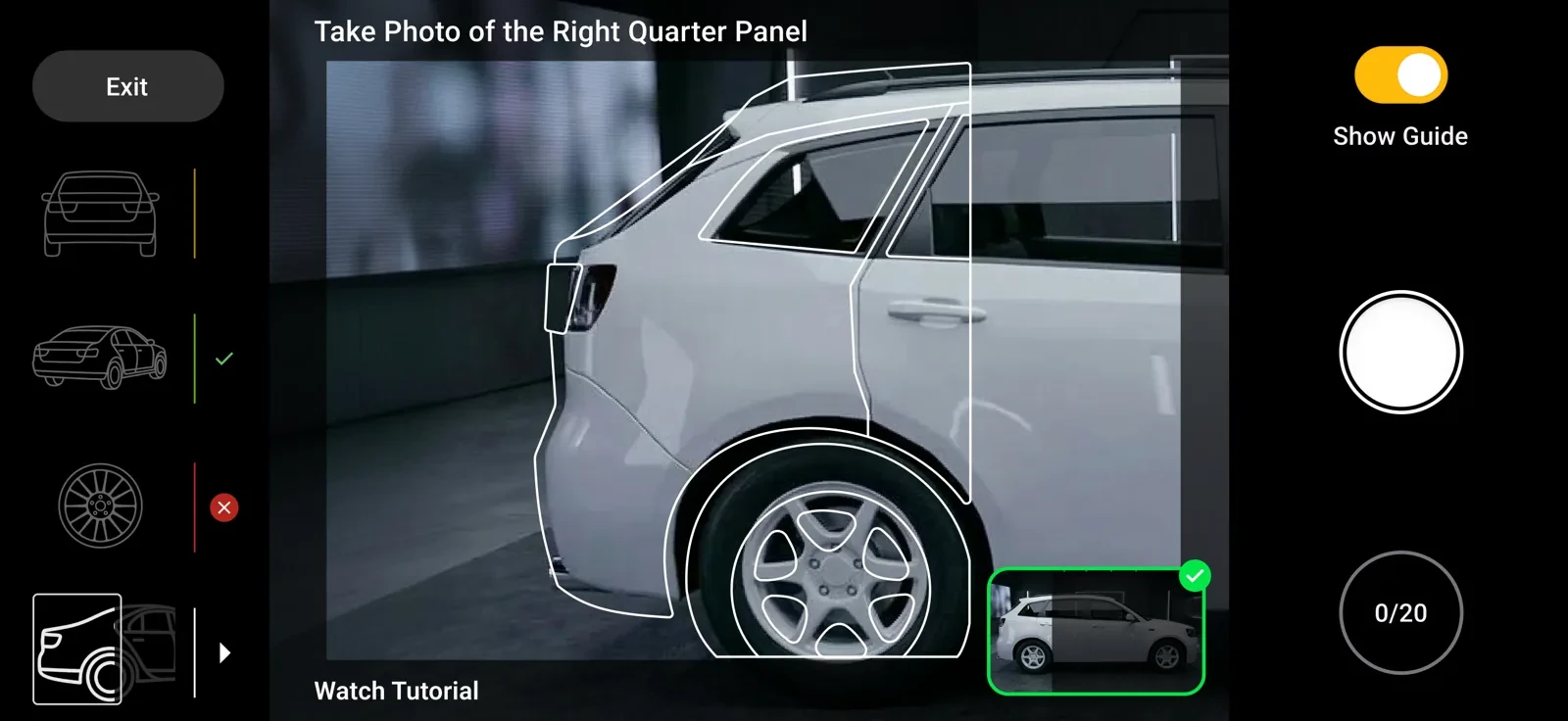
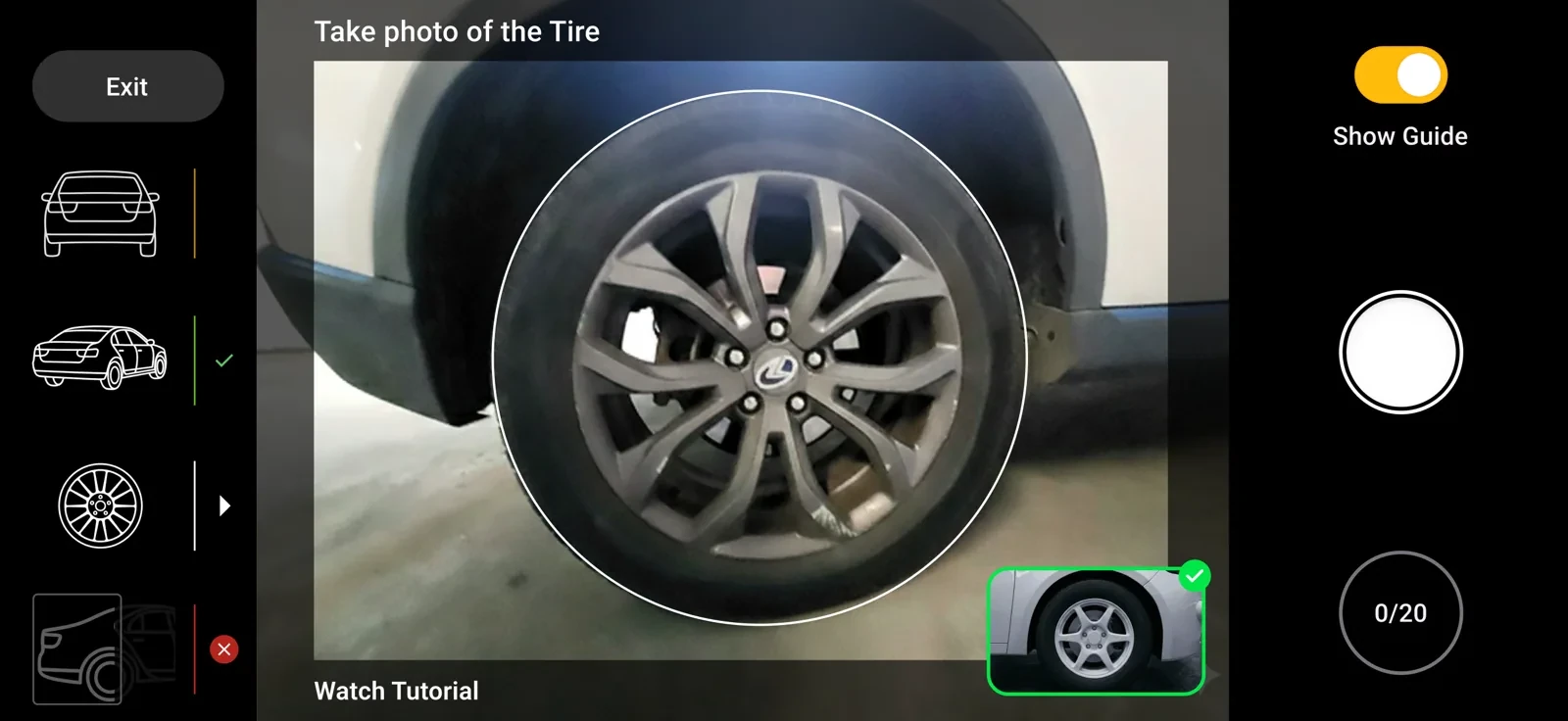
Twenty photos: 16 angles of the vehicle and 4 wheels. Every question an agent might have is answered on this screen, without covering the car.
 12345
- 1What's next, in wordsOne short instruction names the exact shot: “Take photo of the Front Right”.
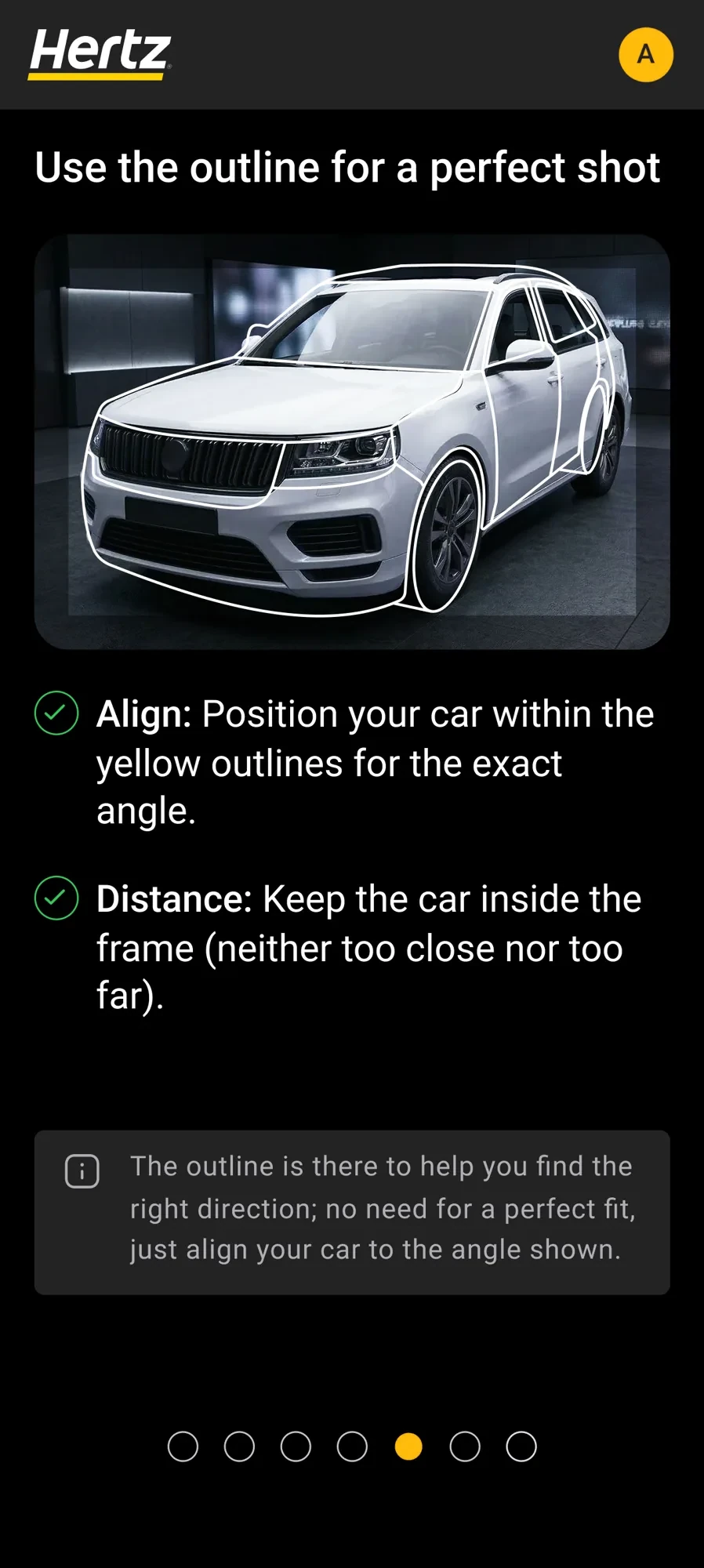
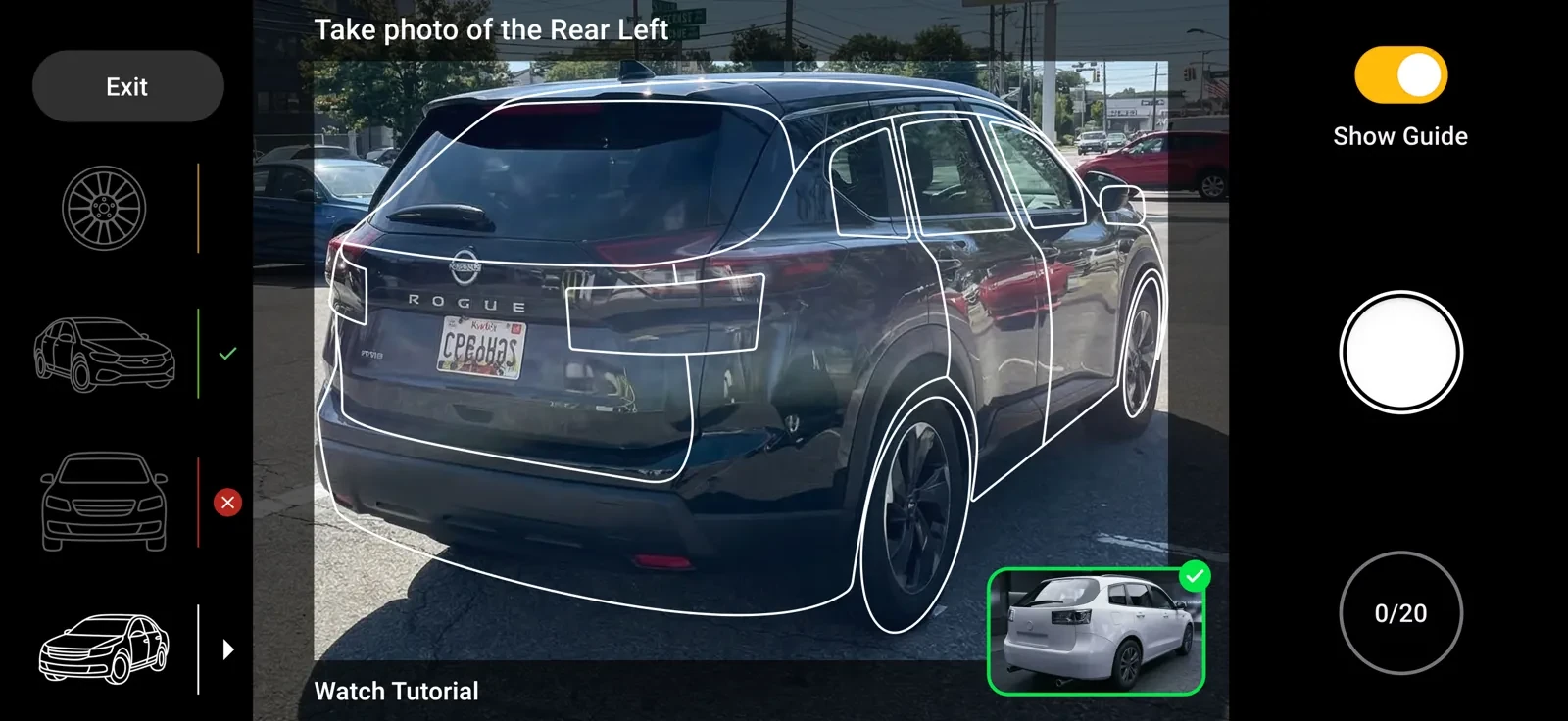
- 2An outline to matchA silhouette of the vehicle at this angle. Fit the car inside it, and the angle and distance are right.
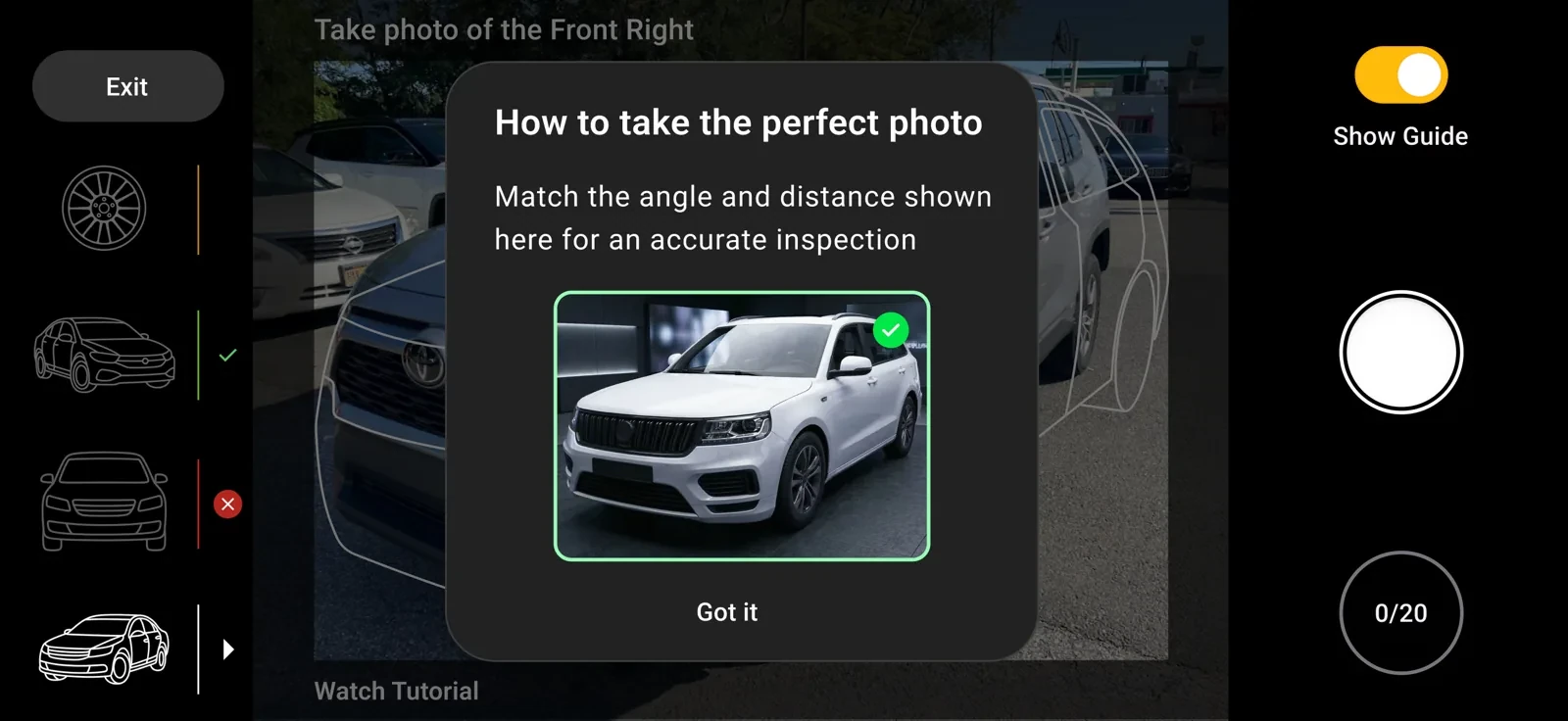
- 3An example photoA small picture of the finished shot, for anyone who would rather compare than align.
- 4Progress around the carThe shots in order, with a check for done, a mark for a photo to retake, and a counter of photos taken out of 20. Any shot can be reopened and taken again.
- 5Show GuideA switch to turn the guidance on or off.
One pattern, twenty shots
Corners, panels and wheels all use the same screen. Vehicles are grouped into eight families, and the silhouettes and guidance adapt to each one. Learn the screen once, and the twentieth photo is as easy as the first.
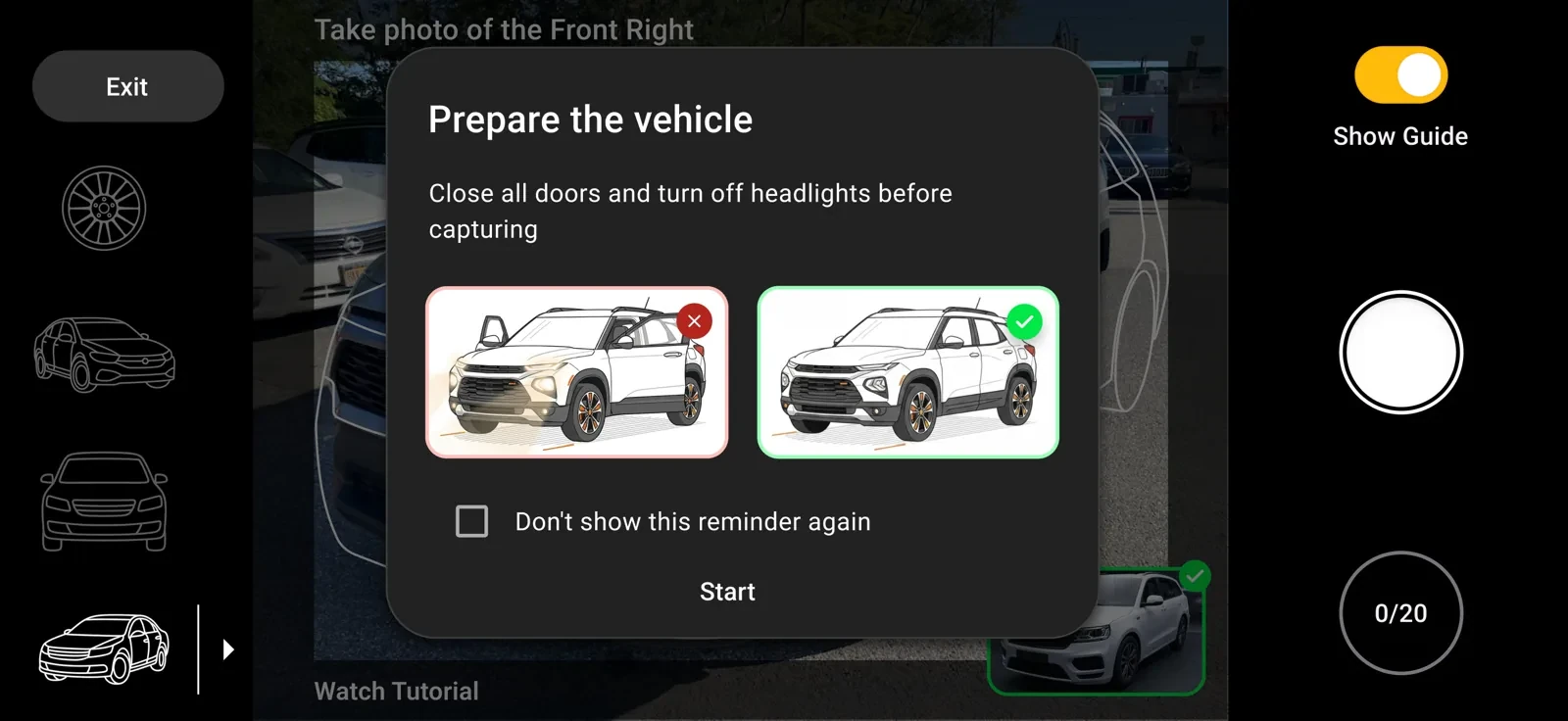
Help at the right moment
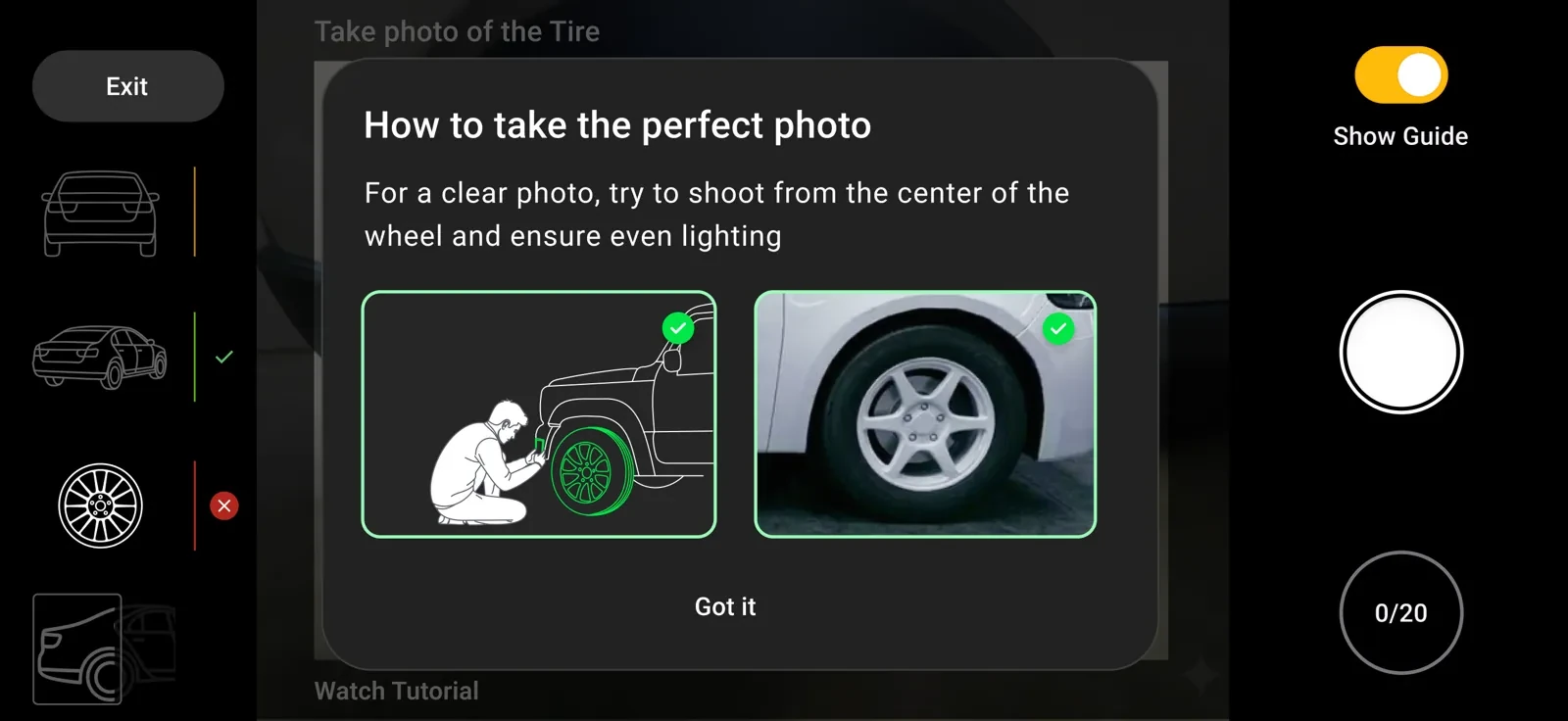
Short tips open only at the moments that need them: before the first photo, and on shots with their own instructions.
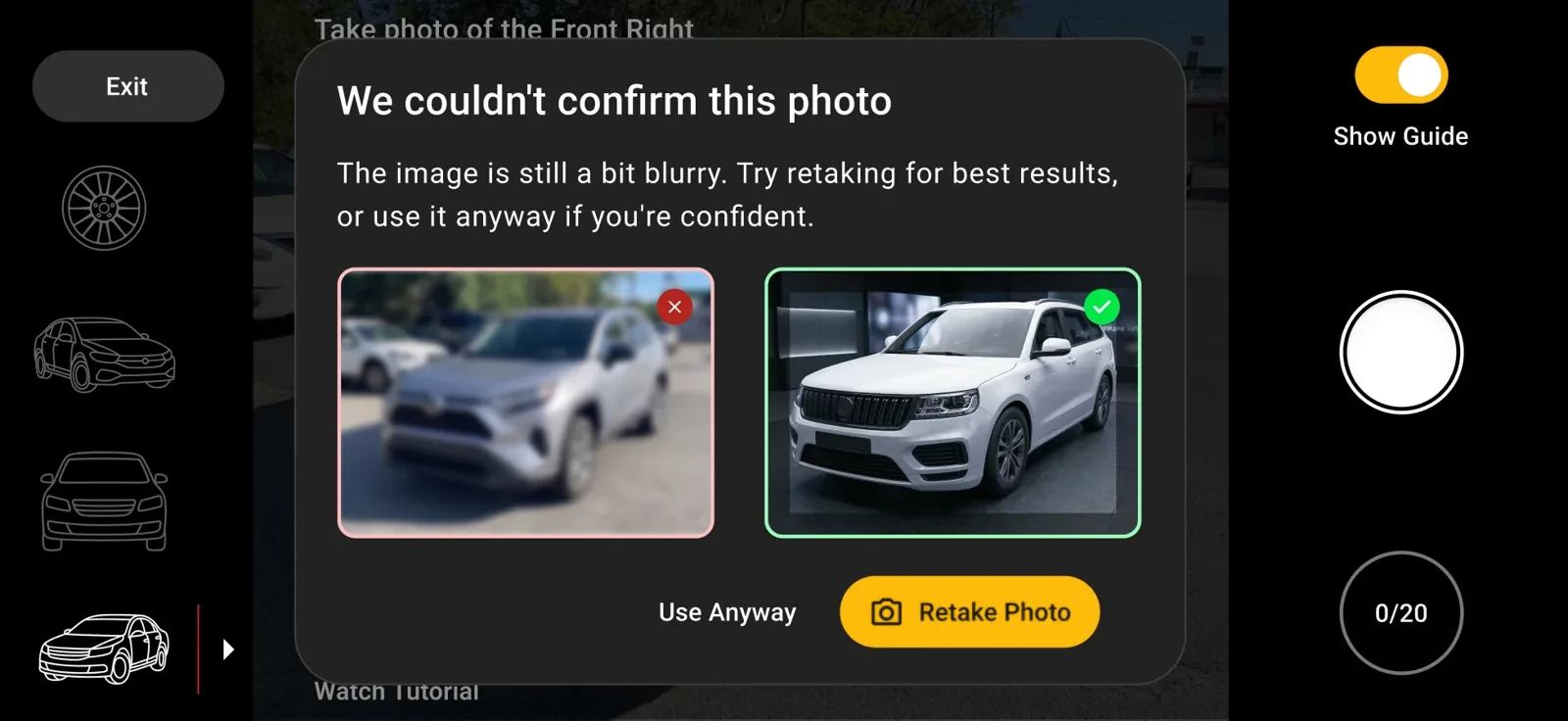
03 · Recover
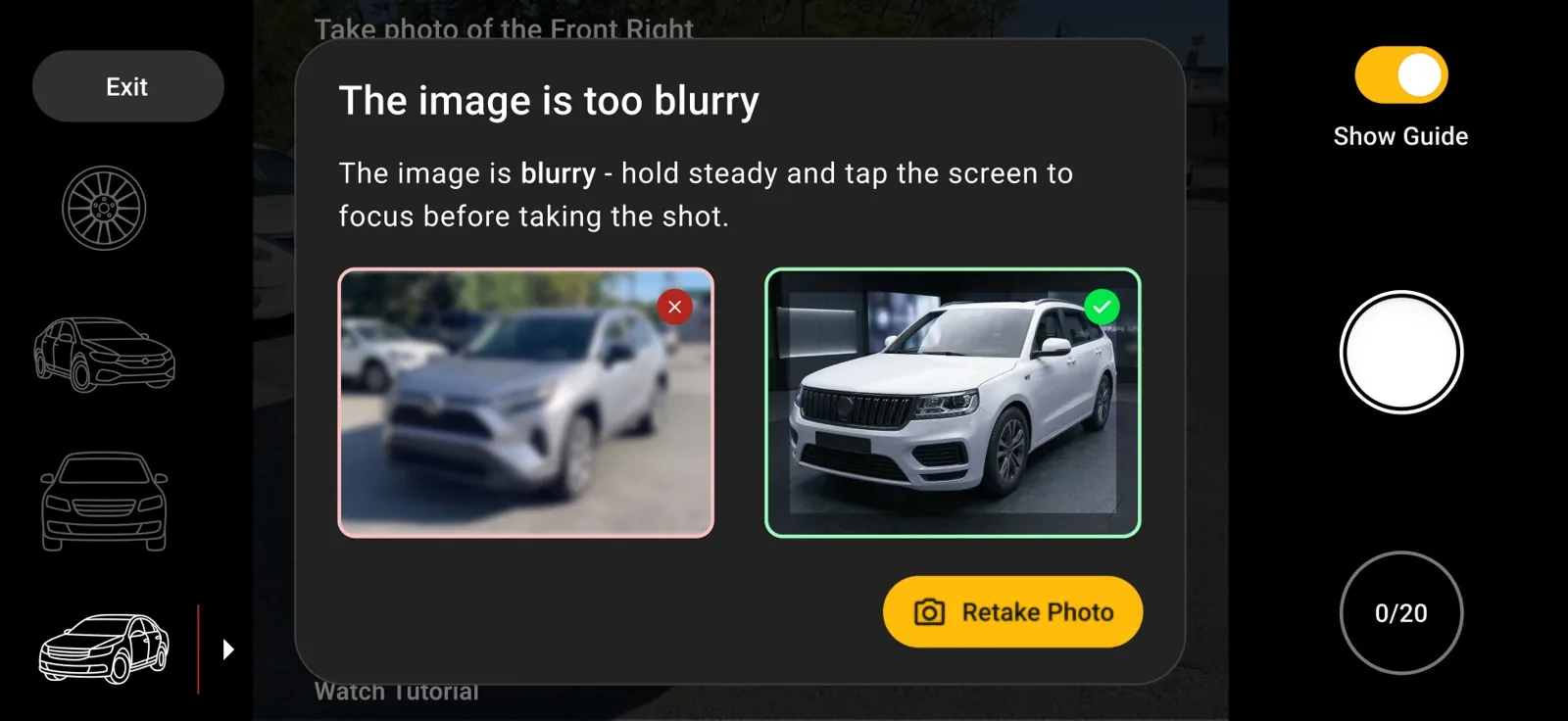
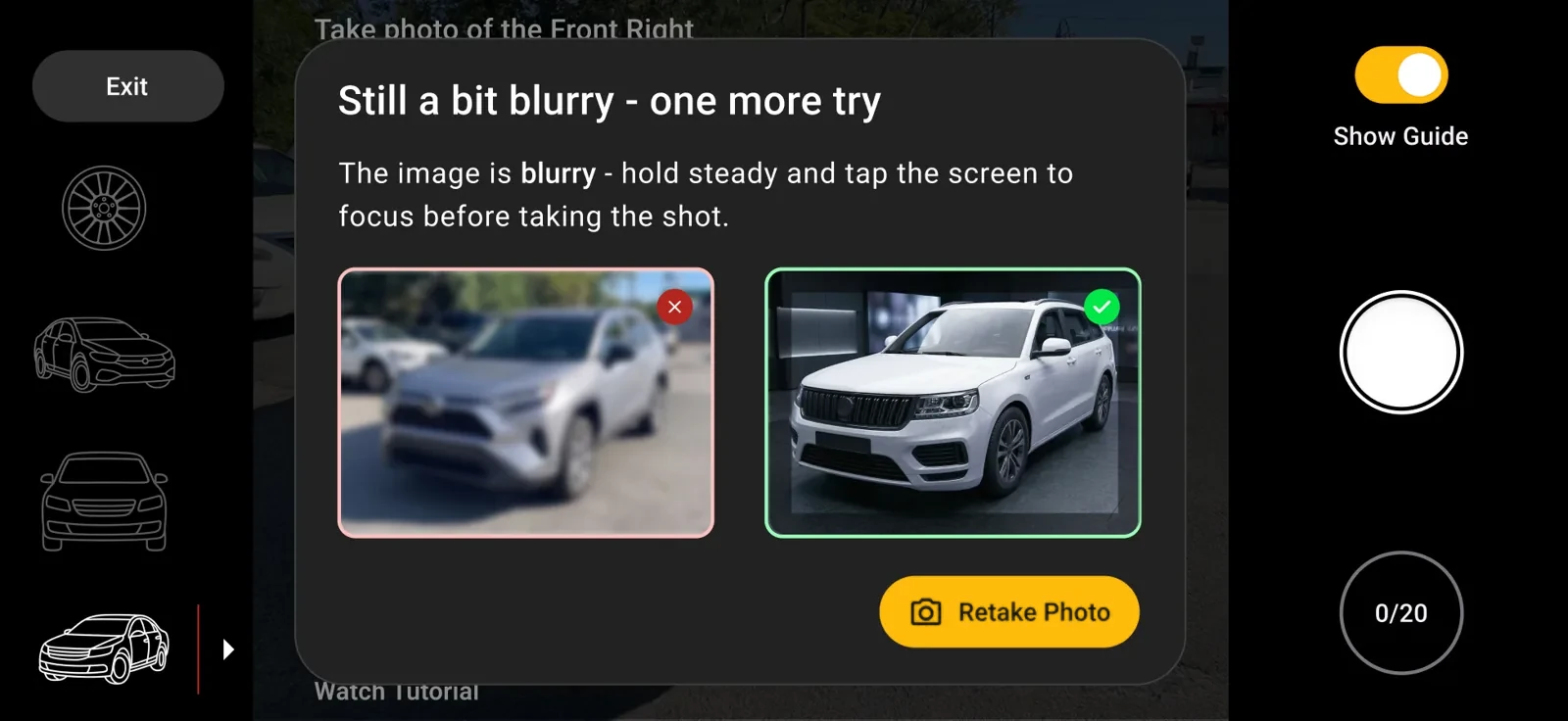
A rejected photo always comes with a way forward
When the AI rejects a photo, the app says why and shows how to fix it. After three rejected tries, the agent can continue with the last photo, even if the AI didn't confirm it.
What I did
- Owned the design of HLE end to end, from onboarding to a completed inspection
- Observed and talked with agents on site, and reframed the problem as missing guidance, not missing skill
- Designed the guidance system: outlines, example photos, progress, contextual tips and AI feedback
- Worked with Product, Algorithms and Engineering to turn the AI's limits into UX decisions
The result
Launched in rental branches.
HLE launched in several rental branches. Internal systems showed a rising trend in adoption and use, and feedback from the field was positive.
Agents didn't need more instructions.
They needed the right one, at the right moment.